Library — setup guide
Each book is one spine image and one number. Physics does the rest. This walks through installing the template and adding your first book. Nothing here needs the command line beyond one copy-paste.
01 Put the files on a server
You need PHP 8.2 or newer. Any shared host will do — no database, no build step, nothing to compile.
Unzip the download and upload the whole folder to your web root. If your download already contains a kirby/ folder you are ready. If it does not, install Kirby alongside it:
composer require getkirby/cms
To look at it on your own machine first, run this inside the folder and open localhost:8000:
php -S localhost:8000 router.php
02 Make your Panel account
Open /panel on your site. The first time, Kirby asks for an email and a password and makes you the administrator. That account is stored in your own files — there is no service to sign up for.
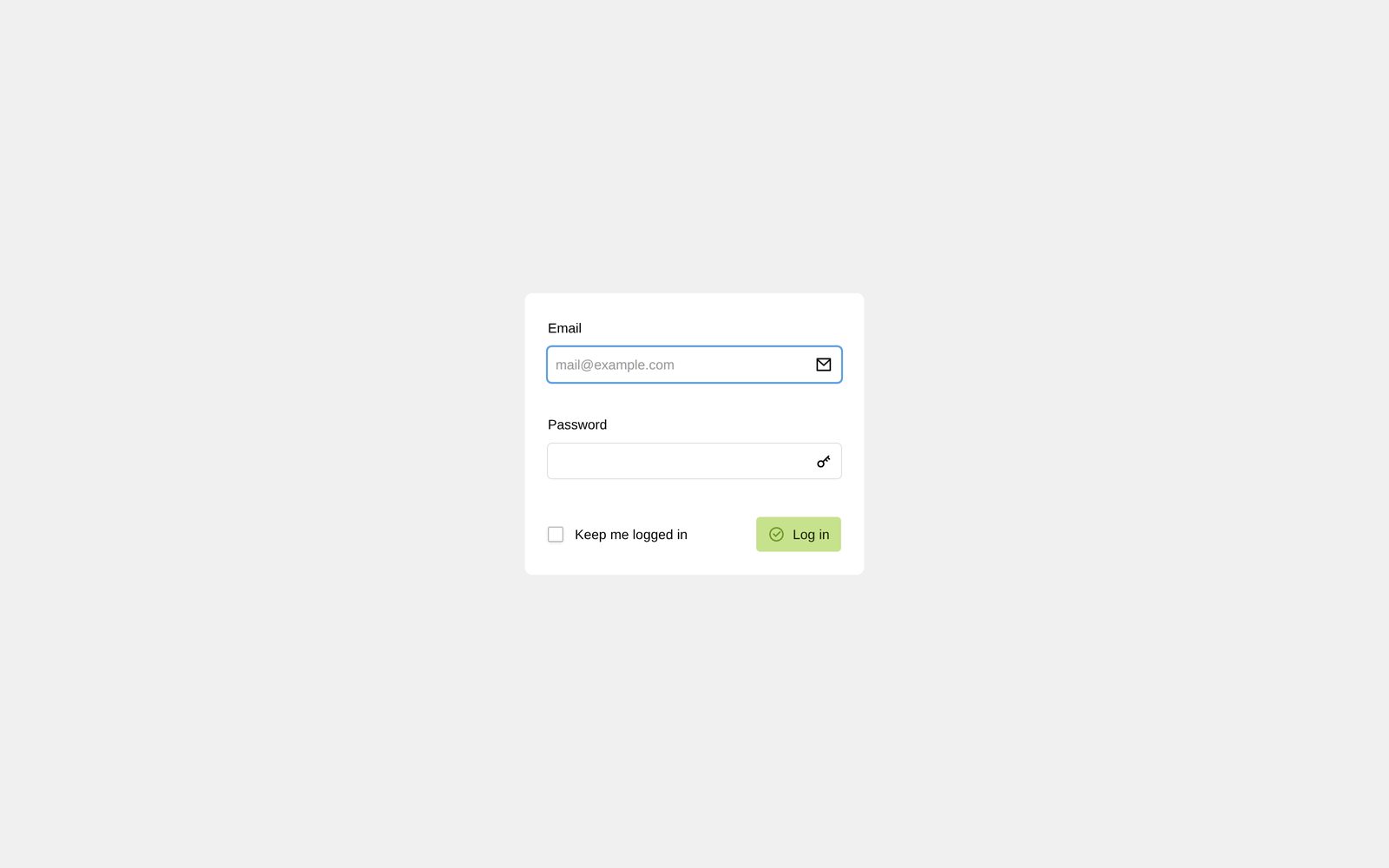
On a live domain, Kirby requires HTTPS before it will let you install. If your host has not issued a certificate yet, do the setup locally first and upload site/accounts/ with the rest.
03 Find where the books live
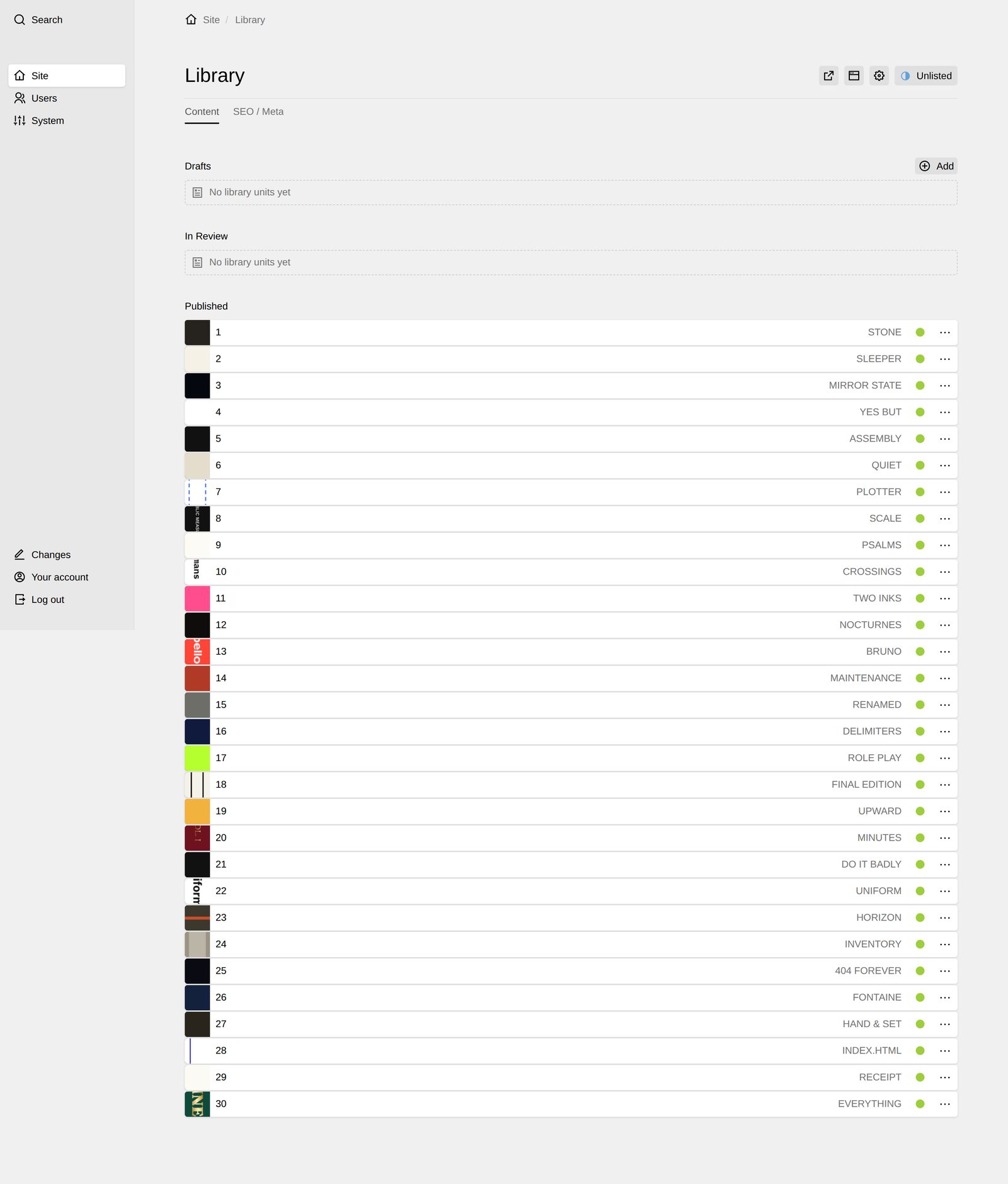
Books live under the Library page, split into Drafts, In Review and Published. Only Published books appear on the shelf.
04 Add a book
Press Add, give it a title, and open it. These are the fields:
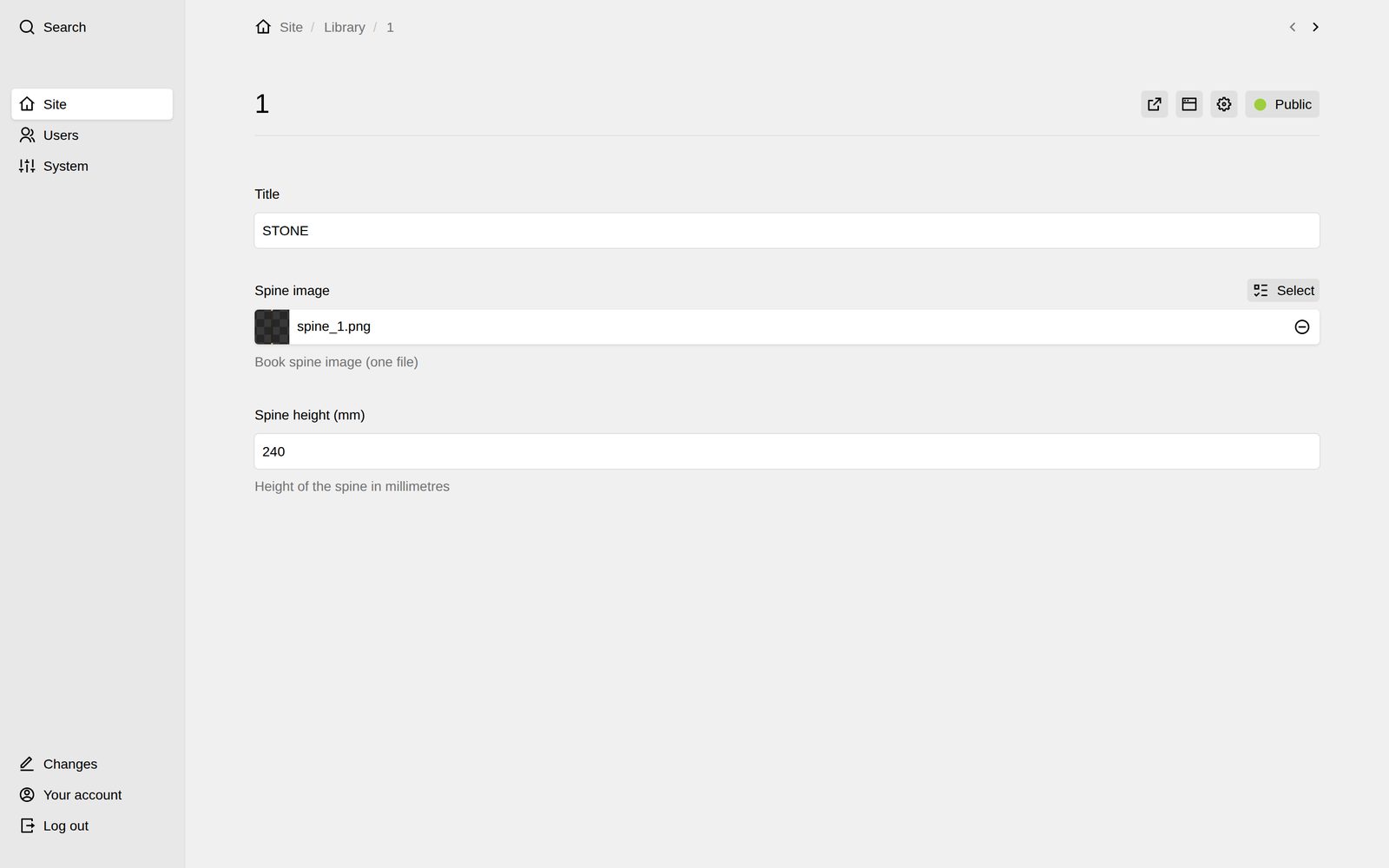
- Title
- Used for the generated fallback spine, and for accessibility.
- Spine image
- One image of the spine only — not the cover. Its aspect ratio is preserved, so a thick book reads thick.
- Spine height (mm)
- Relative height on the shelf. The tallest book in your set fills 90% of the screen; everything else scales against it.
Worth knowing. A book with no spine image still works — the template generates a Swiss-style spine from the title, so the shelf never looks half-built while you are still uploading.
05 Look at the site
Nothing to publish or rebuild — the front end reads the same files the Panel just wrote. Reload and it is there.
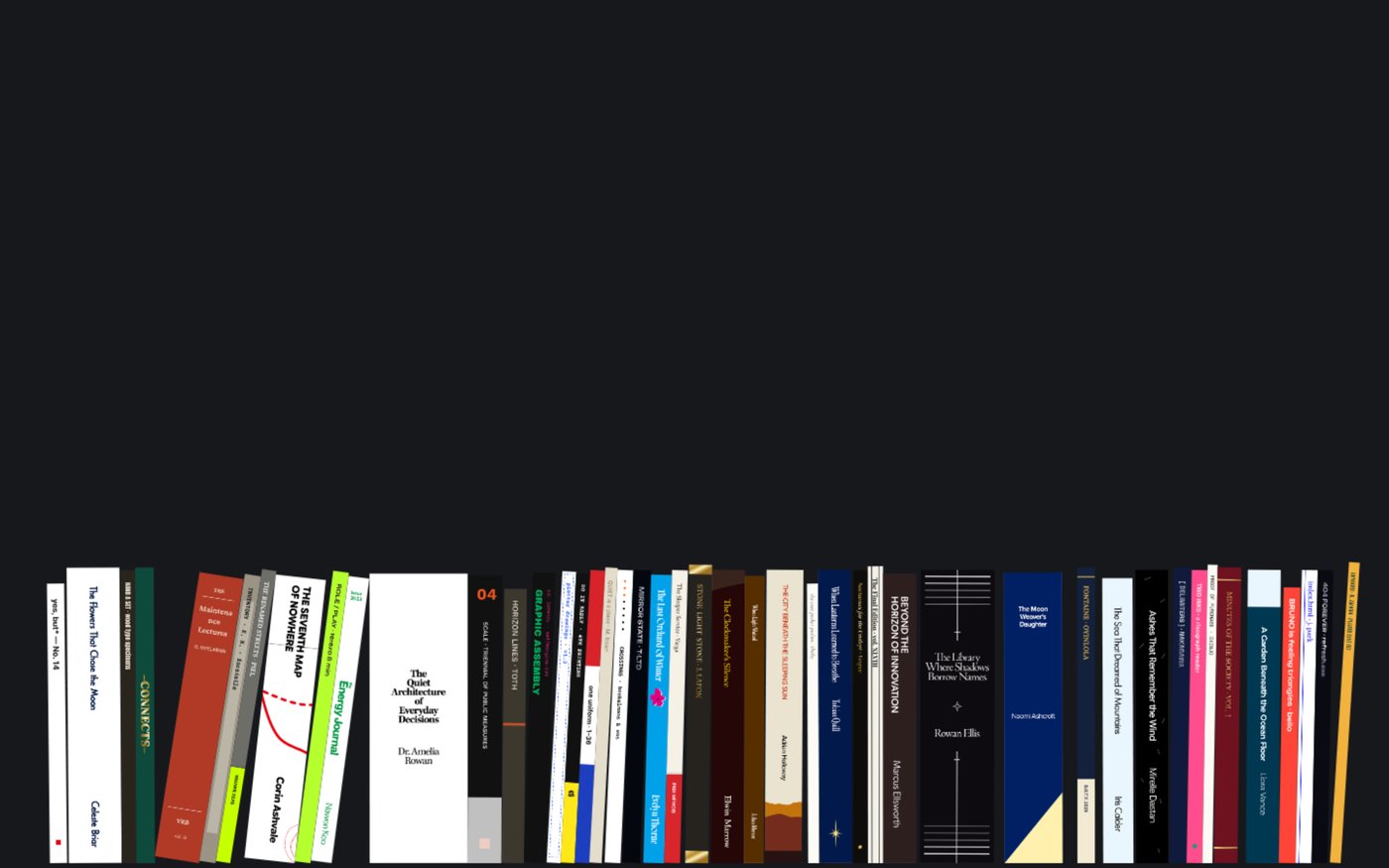
Colour. The page colour is one field on the Site screen — Background colour. Pick anything; text and buttons switch between a light and a dark look on their own.
06 Replace the demo content
The books that came with the template are original work and yours to keep, reuse or delete. Delete them from the Panel like any other page once your own are in.
Kirby is a paid CMS: a production licence is about €99 from getkirby.com and is not included with this template. You can develop and preview locally for free for as long as you like — the licence is for the live site.